Software Update: App Updates
- 4.4
- Rating
- 100.00K
- Installs
- Free
- Price

 Analysis by App-foxy
When several people use the same household phone, keeping apps current can become an oddly easy task to postpone. One person notices a warning, another assumes the phone will handle it, and eventually the device has a mixture of current and outdated software. I found Software Update: App Updates, from Dream App Studios, useful as a simple place to begin that check. It is a free Android app in the Libraries & Demo category, designed around software and app-update discovery rather than around replacing the phone’s built-in settings.
My first impression was that its value depends less on advanced controls and more on reducing the effort needed to remember what should be checked. The app’s store summary focuses on updating apps and upgrading the phone with the latest Android software update. In practice, I would treat it as a convenient update checklist, not as a guarantee that every device or application can be updated from one screen.
How it fits a shared household phone
A realistic example is a family tablet or an older Android phone kept in the kitchen, living room, or car. One person uses it for video calls, another checks school or work messages, and someone else relies on navigation or streaming. Because no single user sees every problem, update reminders can easily fall between responsibilities. Opening this app during a weekly device check gives the household a clear starting point: look for available software updates, review app updates, and then decide what should happen next.
You May Also Like

 Google Keep - Notes and lists
Google Keep’s Quiet Growth Shows the Appeal of Simpler Notes
As mobile work gets busier, Google Keep keeps winning a simple contest: capture a thought quickly, find it later, and get on with the day.

 Blood Strike: 2.5 Anniversary
Blood Strike’s Loadouts Turn Every Drop Into a Tactical Gamble
A close look at Blood Strike’s custom loadouts: how fast access to signature weapons reshapes its battle royale rhythm, rewards preparation, and narrows the gap between fights.

 Pandora - Music & Podcasts
Pandora’s Music Is Easy to Start, but Harder to Recover
Pandora’s strength is its low-effort path from a seed to a station. Its weak spot is how much confidence it asks you to place in connection, setup, and quiet recovery.

 8 Ball Pool
 Is Built on Rivalries, Rematches, and Routine
A close look at the rivalries, rematches, shared routines, and unanswered safety questions that turn a quick pool match into a persistent mobile community.

 Samsung Music
’s Quiet Strength Is Playing What You Already Own
Its reach comes less from spectacle than from dependable access to a personal library. That simplicity is both the app’s strongest retention engine and its ceiling.

 AccuWeather: Weather Radar
AccuWeather Review: A Quick, Clear Forecast for Everyday Decisions
For everyday plans, the best forecast is the one you can understand quickly. AccuWeather makes rain timing, radar, and local conditions easy to act on, with a few trade-offs.
More From Our News Desk



I like this workflow because it does not require every household member to understand Android maintenance. The person who manages the device can perform the check, while the regular users only need to mention whether an app has been behaving strangely. That separation is practical. It avoids turning a shared phone into a debate about technical settings, while still giving the owner a repeatable routine.
There is an important distinction, though. A tool that helps you find update actions is not the same as a system component that silently installs everything. I would use Software Update: App Updates to identify what deserves attention, then confirm the actual update through the appropriate Android or app-store screen. That extra step is not a flaw by itself; it is simply the right expectation for an app with this purpose.
For a household, the strongest use case is not constant monitoring. It is a short, deliberate check before a busy period: before a trip, before handing a phone to a child for schoolwork, or before relying on an older tablet for an important video call. Updates can change compatibility and reliability, so checking in advance is more sensible than waiting until the device fails at an inconvenient moment.
What I would check before pressing update
On a shared device, I would first ask who depends on the phone immediately. If someone is using it for two-factor authentication, navigation, a work call, or a school assignment, I would avoid starting a large maintenance session without time to test the important apps afterward. The app makes discovery easier, but it does not remove the need for judgment.
I would also separate urgent updates from optional housekeeping. If an app is central to the household and has been unstable, it deserves priority. A rarely used game or utility can wait until there is a convenient moment. This small habit is one of the less obvious benefits of using an update-focused app: it encourages a review of the device rather than a blind “update everything” reaction.
Another useful habit is to record which person noticed the issue. If a child says a learning app will not open, or a parent reports that a messaging app is crashing, that context helps decide whether an update is relevant. Software Update: App Updates can be the place where the check begins, but the human explanation still matters more than a generic list of available actions.
Setup boundaries and what the app should not be expected to do
The app is available free of charge, carries an Everyone content rating, and supports Android starting with version 5.0. Those details make it approachable for a broad range of Android users, including households with an older spare device. I would still check the phone’s own compatibility and available storage before treating any update recommendation as immediately actionable. An older operating system may run the app while remaining unable to receive newer system software.
That distinction is especially important when a family shares devices across different ages. A newer phone may have system-update options supplied by its manufacturer, while an older phone may only receive application updates. Seeing both kinds of maintenance discussed together can be helpful, but it can also create unrealistic expectations if the hardware has reached the end of its official support period.
During setup, I would keep the boundaries simple. The person responsible for the phone should decide when updates happen, especially if the device is used by children or by someone who cannot easily recover from a changed interface. The app can support that conversation, but it should not be treated as a family-management system. I would not assume it provides separate household accounts, approval workflows, child profiles, or a history of who initiated a change.
This is where the app differs from more specialized maintenance tools. A manufacturer’s settings area is usually the authoritative place for Android system updates, while an app store remains the natural place for application updates. A device-management solution may offer stronger administrative boundaries, but that is a different category of product. Software Update: App Updates is more suitable when the goal is visibility and convenience, not formal control over multiple users.
My practical setup advice is to use it on the device that actually needs checking, rather than assuming one installation can supervise every phone in the home. If several family members have separate devices, each device has its own operating-system version, storage situation, and update eligibility. A shared conversation can coordinate the work, but the maintenance check should remain device-specific.
Why boundaries matter on older devices
Older phones often have less storage and may react badly when several large applications are updated together. Before updating, I would close anything important, make sure the device has enough free space, and avoid doing the entire process just before somebody needs the phone. The app can help identify the task, but it cannot make limited storage disappear or guarantee that an old handset will perform like a new one.
I would also be cautious with unfamiliar update prompts. The safest workflow is to use the app to understand that an update may be available, then verify the application name and destination through the phone’s trusted system or store interface. This is particularly valuable on a shared device, where a child or guest may tap quickly without checking what is being installed.
That extra verification is not unnecessary friction. It creates a clear boundary between discovery and authorization. In my view, this is one of the most important ways to use the app responsibly: let it organize attention, but keep the final installation decision with the device owner.
Coordinating updates without taking over the household
Coordination works best when it is visible and predictable. I would choose one person to perform the check and ask everyone else to report problems before that check happens. For example, if the shared tablet has trouble opening a video service, the issue can be noted first; after the update review, the household can test that exact service instead of guessing whether the maintenance helped.
This approach avoids a common mistake: assuming that every update is automatically beneficial at every moment. An update may improve compatibility, but it can also change an interface or require a fresh sign-in. On a household device, those small disruptions matter. The person who manages the device should allow time for testing, especially when the phone is used for communication, transport, or school.
I would keep a short informal list of essential apps, such as messaging, maps, banking, health, school, or work tools. The list does not need to be stored inside Software Update: App Updates; a note on paper or in a trusted notes app is enough. The point is to know what to open after maintenance. This turns the app from a passive update prompt into part of a repeatable household routine.
Another useful trade-off is timing. Updating everything at once is convenient, but updating in smaller groups makes troubleshooting easier. If a shared device behaves differently afterward, you have a better chance of identifying which change mattered. On the other hand, postponing updates indefinitely creates its own problems. I would use the app to review the situation, then choose a maintenance window rather than either rushing or ignoring it.
For households with separate phones, coordination should respect account boundaries. I would not ask one family member to hand over passwords or personal account access simply to help with updates. Each owner can perform the check on their own device, while the household shares general timing, such as agreeing not to update the only navigation phone during a trip. The app supports a practical conversation about maintenance without needing access to everyone’s private information.
A simple shared-device routine
Ask each regular user whether an important app has been failing, freezing, or requesting an update.
Open Software Update: App Updates on the device that needs attention and review the available update path.
Confirm the application or system destination through the phone’s normal trusted interface before installing anything.
Update the most important items first, leaving less-used apps for a quieter moment.
Open the essential apps afterward and let the usual users confirm that their daily tasks still work.
This routine is deliberately modest. It does not pretend that the app can diagnose every crash or manage every phone in a family. Its advantage is that it gives a nontechnical person a clear starting point and a reason to perform maintenance before a small problem becomes a household interruption.
Age, trust, and everyday confidence
The Everyone rating makes the app approachable from an age-classification perspective, but that should not be confused with independent authorization to install software. On a child-used phone, I would still keep the final decision with a parent or device owner. A young user can report that an app needs attention, but an adult should verify what is changing and whether the device is needed immediately.
For older relatives, the app may be useful because it gives a familiar maintenance task a visible starting point. However, I would avoid presenting every prompt as something they must solve alone. A short shared check can be more reassuring than asking someone to navigate several unfamiliar Android menus. The best result is not merely a current app; it is confidence that the person knows whom to ask before accepting an unexpected change.
Trust also matters because update-related tools can look more powerful than they really are. I would explain that this app helps locate update actions, while the phone and official app distribution channel remain the places where the actual installation should be confirmed. That explanation prevents a household member from assuming that every recommendation is mandatory or that the app can repair an unsupported device.
Privacy boundaries are equally practical. On a shared phone, different people may have different accounts and different expectations about what they install. I would not use an update check as an excuse to browse another person’s messages, photos, or account settings. The maintenance task should stay focused on software status. This makes the process easier to trust and less likely to create unnecessary family conflict.
The app’s popularity gives it some reassurance for people who prefer a familiar download: it has an average rating of 4.5 from around 2.1 thousand ratings and has passed 50 thousand installs. Those figures do not replace personal caution, but they suggest that it is not an obscure experiment with no visible user adoption. I still judge it by whether it makes the household’s specific routine clearer.
Where another option is better
If you only want the most authoritative system information, Android’s own settings are usually the better first stop. If your concern is application installation, the official app store is the more direct alternative. If you need parental approvals, managed accounts, remote administration, or detailed device policies, this app is not the right tool to build that structure.
It is also not my first choice for someone who already checks updates comfortably through the phone’s built-in screens. In that case, adding another layer may provide little benefit. The app earns its place when the standard paths feel scattered, when a shared device is easy to forget, or when a less technical user needs a simple maintenance starting point.
My household verdict
Software Update: App Updates is a focused Android utility from Dream App Studios that I would recommend for people who want a straightforward way to begin checking app and system maintenance. Its current version is 1.8.0, and its free access removes a common barrier for households deciding whether a small convenience tool is worth trying.
My recommendation comes with a clear condition: use it as a guide, not as an authority that replaces Android settings or official app-store confirmation. Its best contribution is organizational. It helps a household remember to check, decide which device needs attention, and coordinate updates around real people and real schedules.
I would choose it for a shared tablet, an older family phone, or a home device that several people rely on but nobody regularly maintains. I would skip it if you need centralized family controls, formal account separation, remote management, or detailed troubleshooting. In those situations, the device’s built-in tools or a dedicated management solution are better suited.
For everyday use, the winning approach is simple: check before an important event, verify each update through the trusted Android path, prioritize essential apps, and test the device afterward. That balance between convenience and personal oversight is where this app makes the most sense. It does not turn maintenance into magic, but it can make a neglected shared device easier to keep ready for everyone who depends on it.
FAQs for Software Update: App Updates
01What is Software Update: App Updates and what does it do?
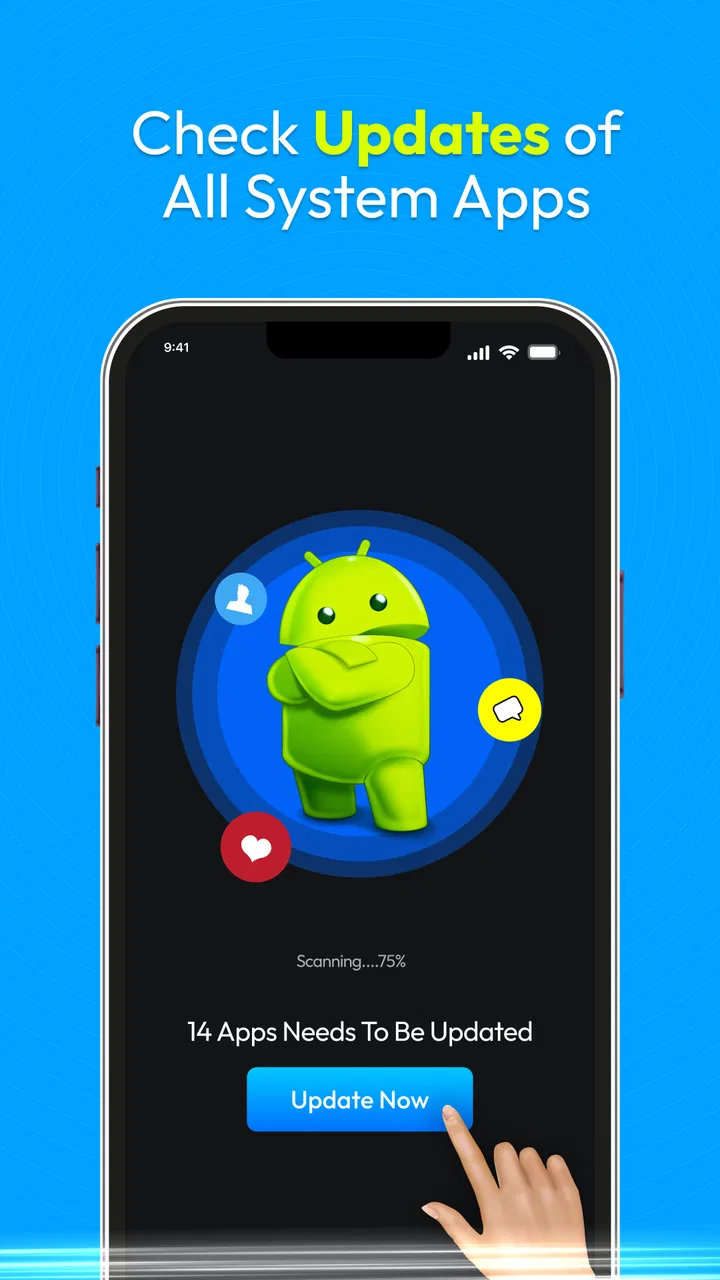
Software Update: App Updates is an app designed to keep your Android or iOS device running smoothly by ensuring all your apps are up to date. It scans your device for outdated apps and provides an easy way to download the latest versions, enhancing performance and security.
02How does Software Update: App Updates improve device performance?
By keeping apps updated, Software Update: App Updates helps improve device performance by ensuring compatibility with the latest system updates, fixing bugs, and optimizing app functionality. Regular updates can lead to faster app loading times and improved overall device efficiency.
03Is Software Update: App Updates free to use, and are there any hidden costs?
Software Update: App Updates offers a free version with basic features. However, there might be in-app purchases or premium versions available that provide enhanced features like automatic updates and ad-free experience. Always check the app store for detailed pricing information before downloading.
04Does the app automatically update all apps, or do I need to manually approve each update?
The app provides both options. You can set it to automatically update all apps, ensuring you always have the latest versions without manual intervention, or you can receive notifications and manually approve each update. This flexibility allows you to control the update process based on your preferences.
05Are there any compatibility issues with certain devices or operating systems?
Software Update: App Updates is designed to work with most Android and iOS devices. However, older devices or those running outdated operating systems might face compatibility issues. It's advisable to check the app's requirements and ensure your device meets them for optimal performance.
Pros
- User-friendly interface for easy navigation.
- Automatic updates keep apps current.
- Supports a wide range of applications.
- Customizable update settings.
- Low impact on battery life.
Cons
- Limited support for older devices.
- Occasional notification glitches.
- Some updates may require Wi-Fi.
- Ads can be intrusive at times.
- No rollback feature for updates.

Software Update: App Updates
Gallery